

How Multi-CDN works
One stream goes through SmartPlay to two CDNs, at a split the operator sets. The operator changes it from 70 / 30 to 30 / 70, and SmartPlay applies the new split to every playback session while the show keeps playing.
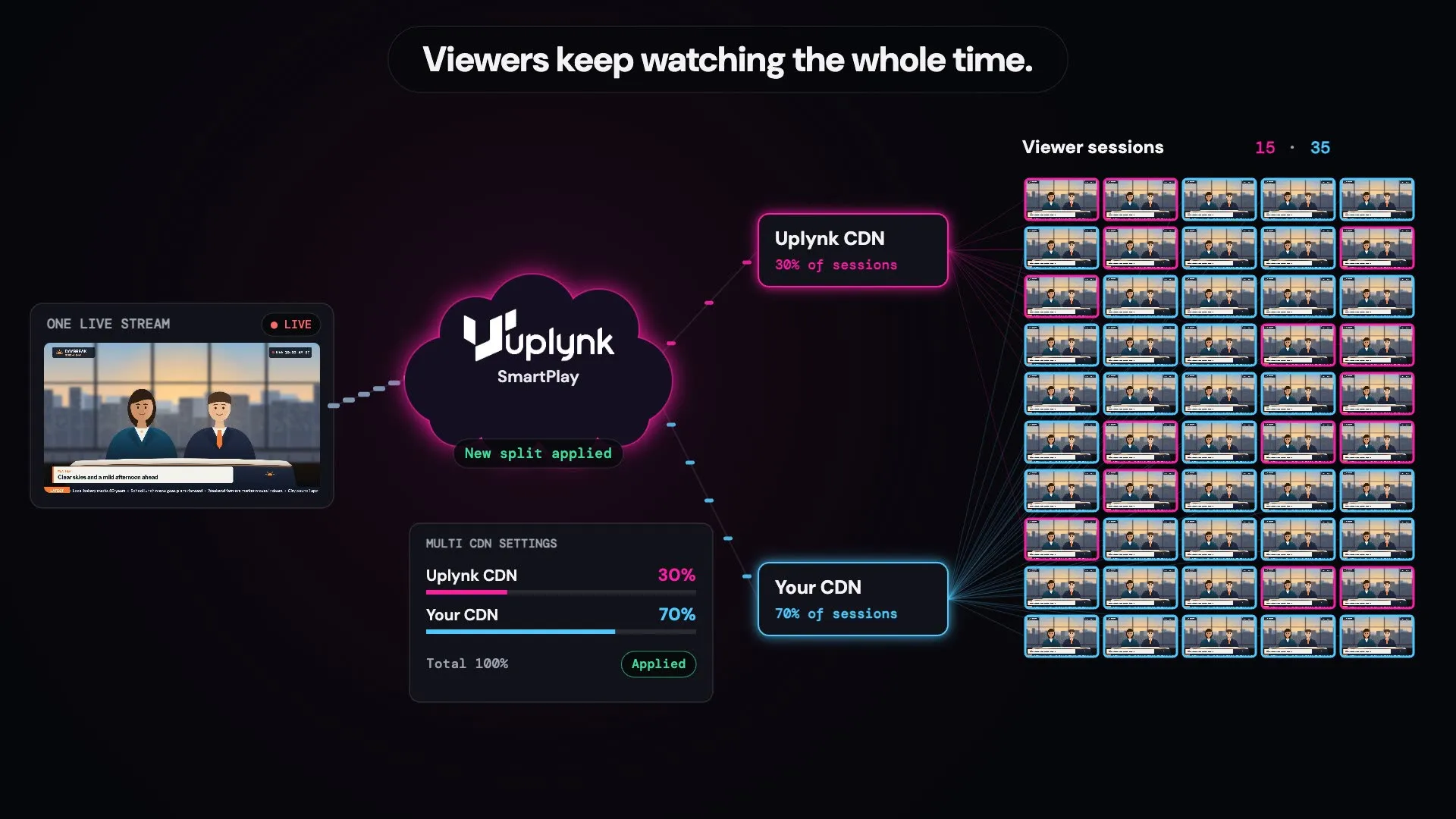
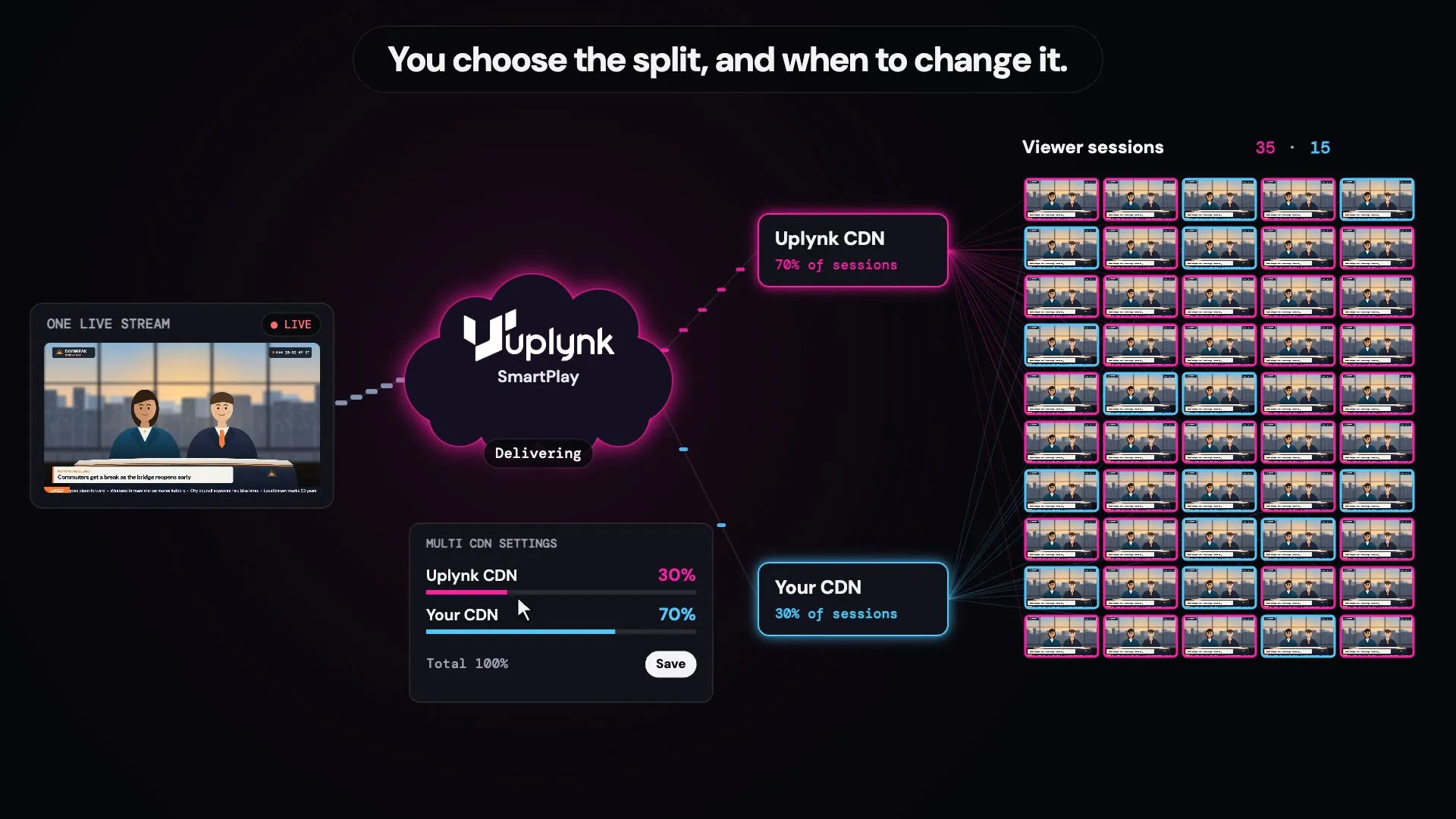
Set your CDN traffic mix in one place
Add your CDNs
Use your own CDN alongside Uplynk’s default CDN. Uplynk Support configures your CDNs on your account.
Set the split
On the Multi CDN Settings page, you choose what percentage of playback traffic each CDN receives. The percentages always add up to 100.
Change it when you decide
You decide when the split changes, for example from 70 / 30 to 30 / 70. Change the percentages and save. Uplynk does not change them for you.
SmartPlay applies it
Within about a minute, SmartPlay applies your new split to all playback sessions, the ones already watching and the ones that start next.
Why Multi-CDN with Uplynk
You Decide the Split
You set exactly how much playback traffic each CDN receives, and you decide when to change it. SmartPlay applies the percentages you set.
Use the CDNs You Already Have
Bring your own CDN contracts and use them next to Uplynk’s default CDN.
Changes Apply in About a Minute
Move traffic for a major live event, a regional delivery issue, CDN costs or commitments, or a provider test, without rebuilding a stream.
Live, Linear and VOD
The same Multi-CDN settings apply to live events, linear channels and on-demand content.
What is Multi-CDN?
Multi-CDN lets you deliver one stream through more than one content delivery network. You choose what percentage of playback traffic each CDN receives. You can use your own CDN in addition to Uplynk’s default CDN.
Does Uplynk switch CDNs automatically?
No. You decide the split and when to change it. Uplynk applies the percentages you set.
Why would I change the split?
Common reasons are a major live event, a regional delivery issue, managing CDN costs or commitments, testing a provider, or moving more traffic to a CDN you prefer. In every case, you make the change and SmartPlay applies it.
How do I add my own CDN?
Contact Uplynk Support to have your CDN configured. Once Multi-CDN is enabled on your account, you set the percentages yourself on the Multi CDN Settings page.
How quickly do changes take effect?
After you save a change, all playback sessions, current and future, use the new percentages within approximately one minute.
Do viewers notice when traffic moves?
Usually not. SmartPlay builds the manifest, so when you change the split it points each session to the new CDN. Most players switch over without a refresh, but behavior varies from player to player.
Can I set a CDN for a single playback?
Yes. A CDN setting in the playback URL overrides the percentages on the Multi CDN Settings page for that playback.
Explore More of SmartPlay
See how Multi-CDN fits into the rest of the Uplynk platform.