

How 1:1 manifest personalization works
Several viewers can press play on the same live program. SmartPlay builds a manifest for each viewing session, then applies the settings and rules for that session.
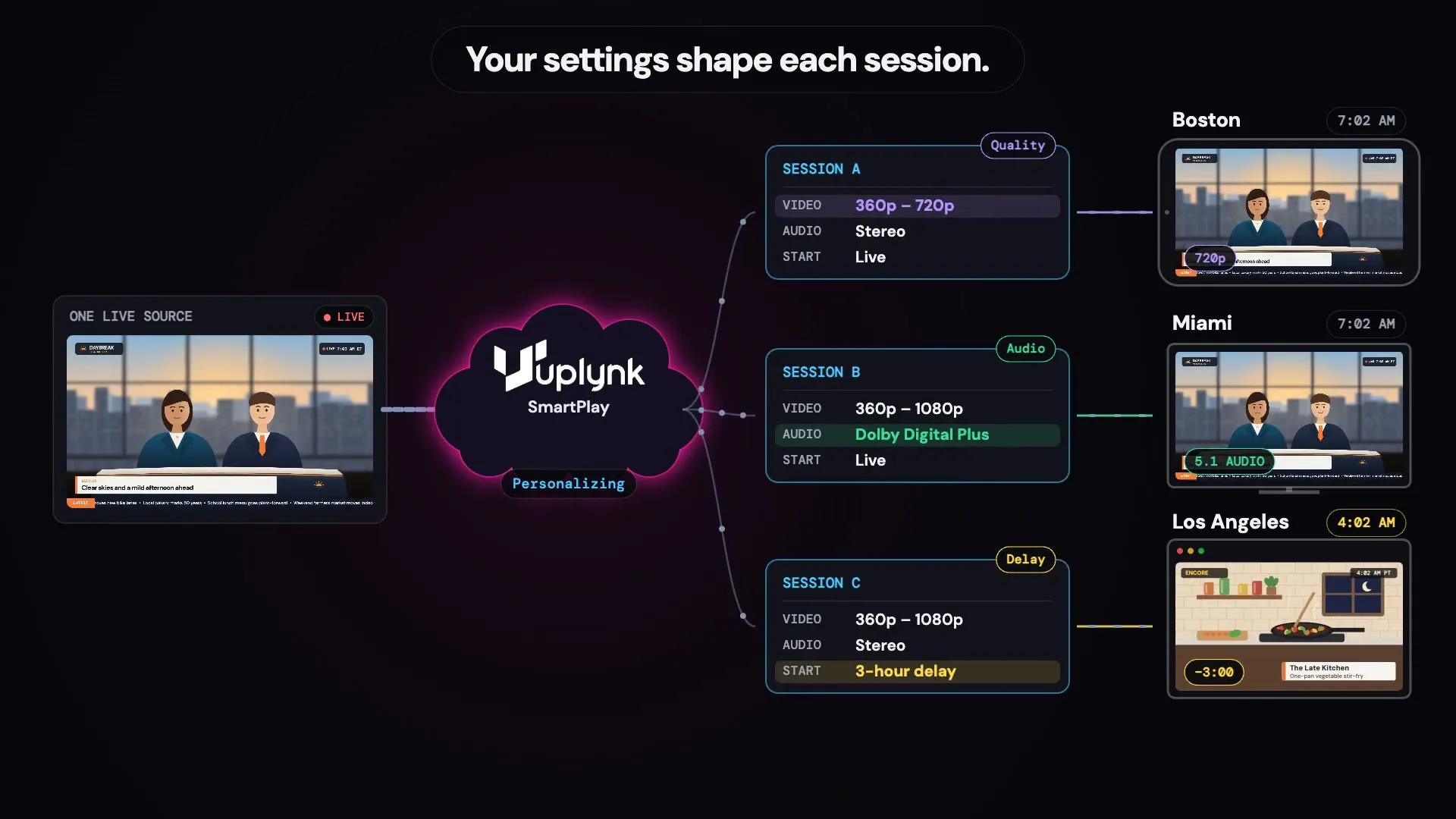
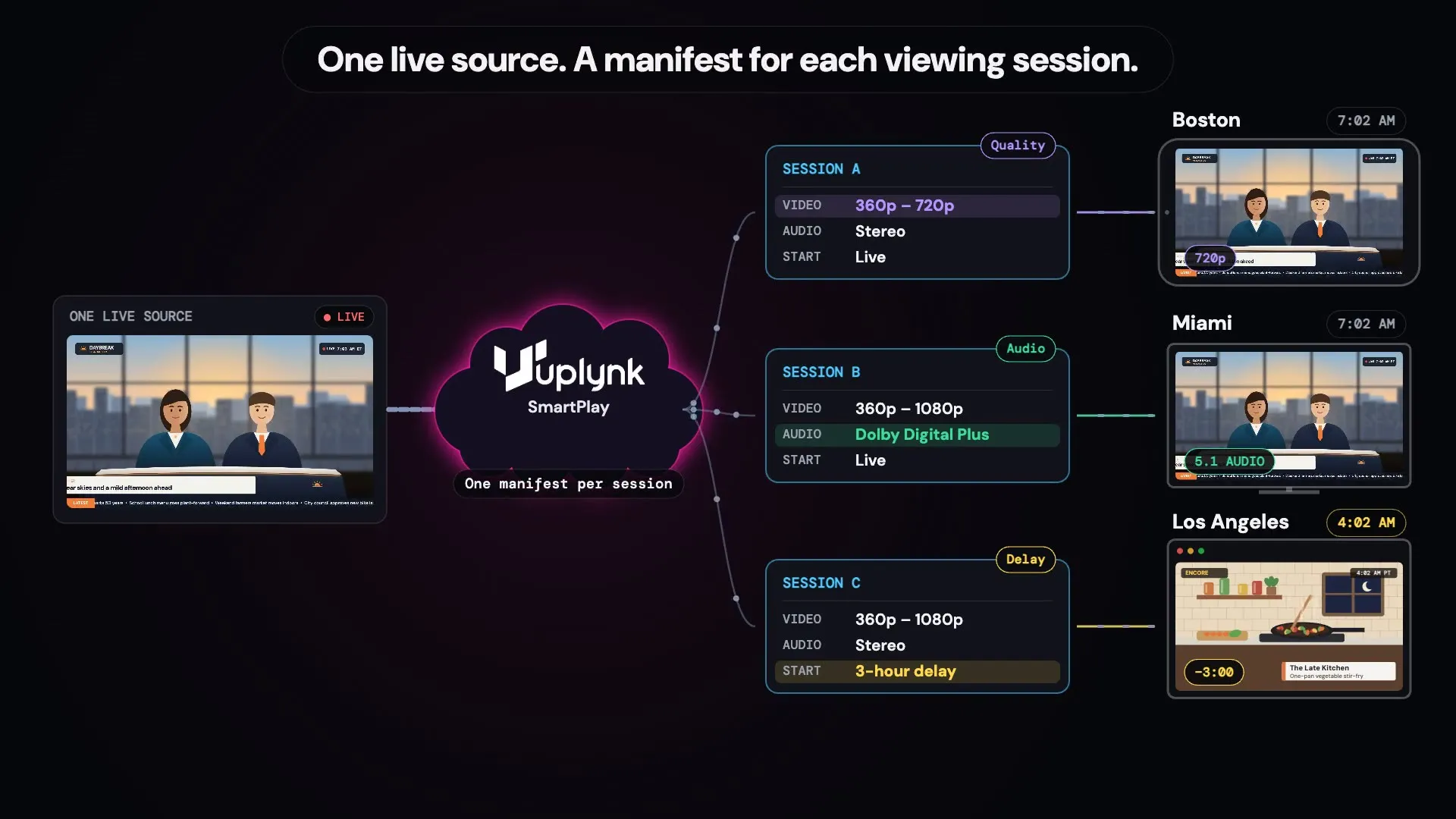
From one live source to a manifest for each viewing session
Your live video reaches Uplynk
Send Uplynk your live video with the video and audio choices you want to offer. SmartPlay does not make a new encoded copy of the main program for each viewer.
A viewer presses play
The video player asks for the stream through a playback link. The link identifies the content and may include settings for that viewing session.
SmartPlay builds the manifest
SmartPlay returns a manifest for the viewing session. It tells the player which parts of the stream it can use and where to find them.
Your settings shape the session
Settings can limit the video quality choices, include Dolby Digital Plus audio when the source has it, add a delay for a regional schedule, choose an ad setup, or apply a supported digital rights management (DRM) policy.
The player follows its manifest
Each session gets the right playback instructions while using the same main live source. Ads or replacement content may also differ when those features are set up.
Why 1:1 manifests matter
One Source, Many Viewing Experiences
Support different devices, regions, and business rules without making a new encoded copy of the main program for each viewer.
Match the Choices to the Device
Your app can limit the video quality levels offered to a device. It can also request Dolby Digital Plus audio when that audio is available and the device supports it.
Schedule Live Video for Different Regions
Add a set delay so a program can start later for another region. Your app or playback process must set the delay. SmartPlay does not choose a time zone on its own.
Support Ads, Content Rules, and Protection
Session-specific manifests help SmartPlay place server-side ads and use configured content-replacement rules. DRM is set up separately and can be applied to the viewing session.
What is a manifest?
A manifest is a small text file that tells a video player what it can play next. It lists the video, audio, and other stream choices that are available. SmartPlay builds one for each viewing session.
Does Uplynk create a separate source stream for every viewer?
No. SmartPlay changes the playback instructions for the session. It does not need a separate encoded copy of the main program for every viewer. The manifest, and any ads or replacement content it points to, can differ by session.
What can I control for a viewing session?
The choices depend on your content and setup. Playback-link settings can limit the video qualities, include Dolby Digital Plus audio, add a live delay, select an ad setup, and apply a supported DRM policy.
How does a regional delay work?
A delay setting holds one viewing session behind the live source by a set number of seconds. For example, you can use a three-hour delay when that fits your regional schedule. Other sessions can stay closer to live.
Can viewers change the settings in a playback link?
Use signed playback links when you need to protect the content and its settings. If someone changes a protected value in the link, the signature will fail.
How does this work with ads and Audience Rules?
With server-side ad insertion, SmartPlay can request ads from your ad system and place them into a viewing session. With configured audience or blackout rules, SmartPlay can send matching sessions to alternate content.
Explore More of SmartPlay
See what session-specific manifests make possible across Uplynk.